How to comment on any audio file
Whether you're a musician, sound designer, podcaster or voiceover artist, you have probably run into the struggle of adding notes directly to digital audio files.
Annotone is the fastest way to review and add notes to sound files, and the first local-first audio annotation application. For those familiar with Soundcloud's comment feature, Annotone offers a similar experience, plus more robust collaborative features such as track comparison, flags to find your best-takes, keyboard shortcuts, and more.
With Annotone, you can add notes, flag takes, and save important ideas on any sound files (ie. WAV, MP3, FLAC) in seconds! Annotone is a powerful tool for audio professionals and teams to privately share feedback and edits with clients, editors, team members, producers, and co-workers.
Stop wasting time searching for files and timestamps: with Annotone, every note is just one click away, so you can quickly toggle between time-synced comments across several audio files.
Unlike other software solutions, you don't have to compromise on price or privacy to share notes with Annotone: your audio files are never uploaded to the cloud, and your license lasts for a lifetime (not a subscription with pesky storage limits).
In this article, we’ll cover everything you need to know about how to comment and review audio files, including a step-by-step breakdown of best practices for music, podcasting, voiceover, meeting transcription, and more.
How to add timed comments to any sound file (WAV, MP3, FLAC)
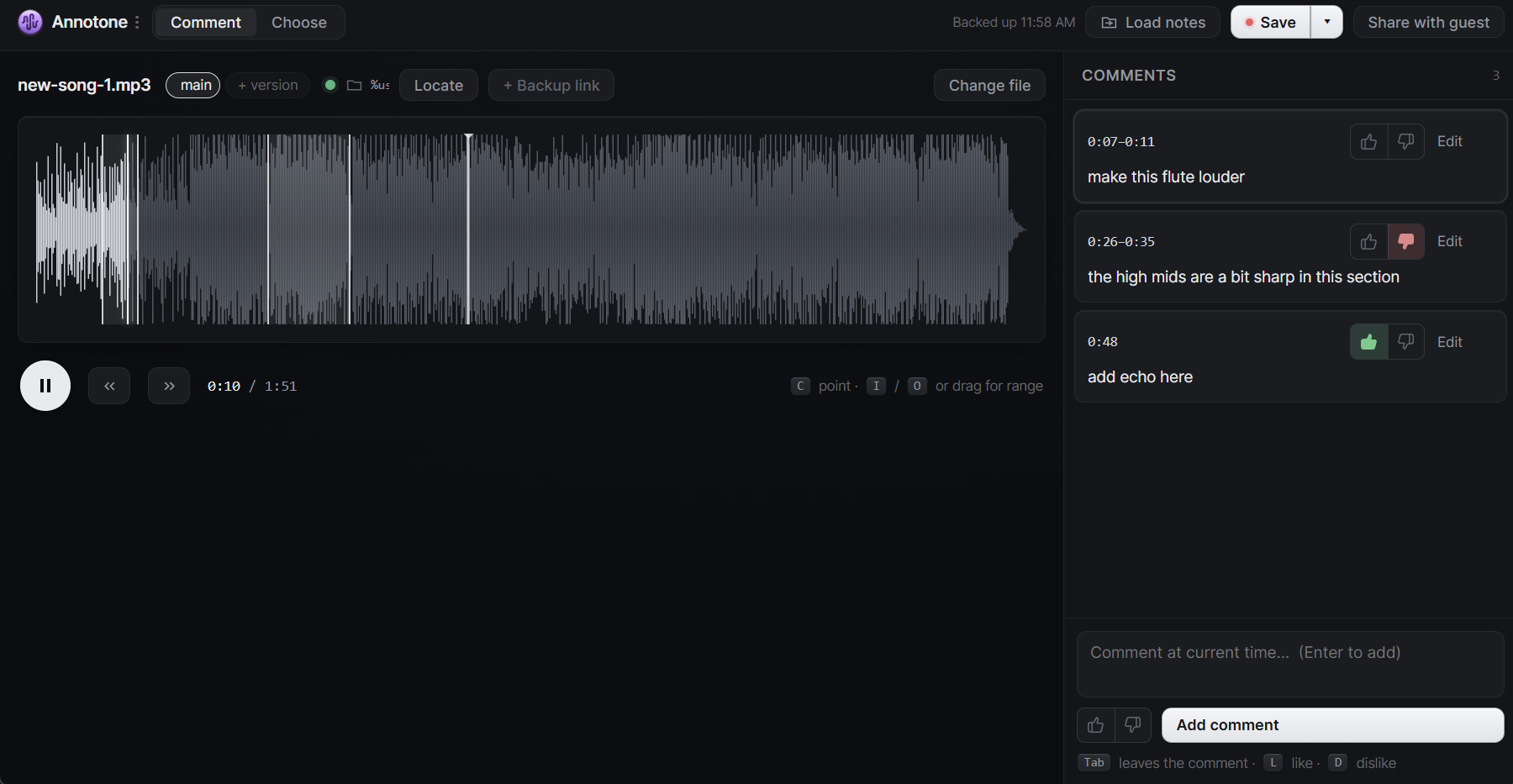
- Open Annotone ("Comment" mode should be open by default) and add your audio file by dragging and dropping, or selecting from your filesystem.
- Click Play or press Space to add notes while youre listening
- Click the waveform or press C to add a new comment at a specific point in time (a "timestamp")
- To comment on a range / interval, click and drag on the waveform or press I at the beginning and O at the end.
- Type your comment and press Enter to save.
- Click save to save your notes locally as a plain-text SRT file (the standard file format used for subtitles), which anyone can open in Notepad. You can also share a private review link as elaborated below.
How to compare between audio files
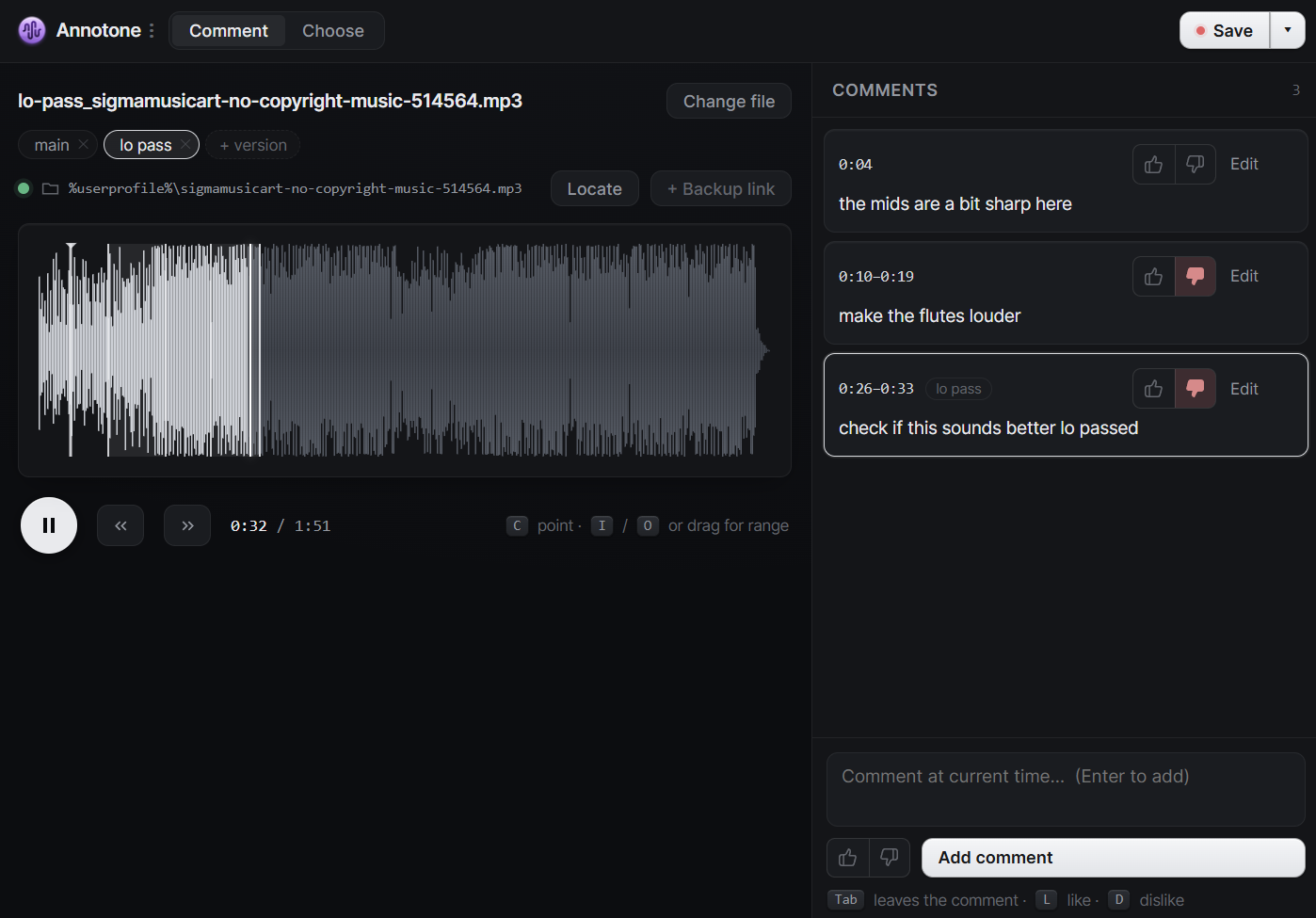
- Open Comment mode and add the main version of your song or audio file.
- Click the + version button to add another mix, edit, or variation.
- Switch between versions while reviewing your comments. Your comments remain aligned as you compare each version.
How to choose your favorite takes or sound bytes across several files
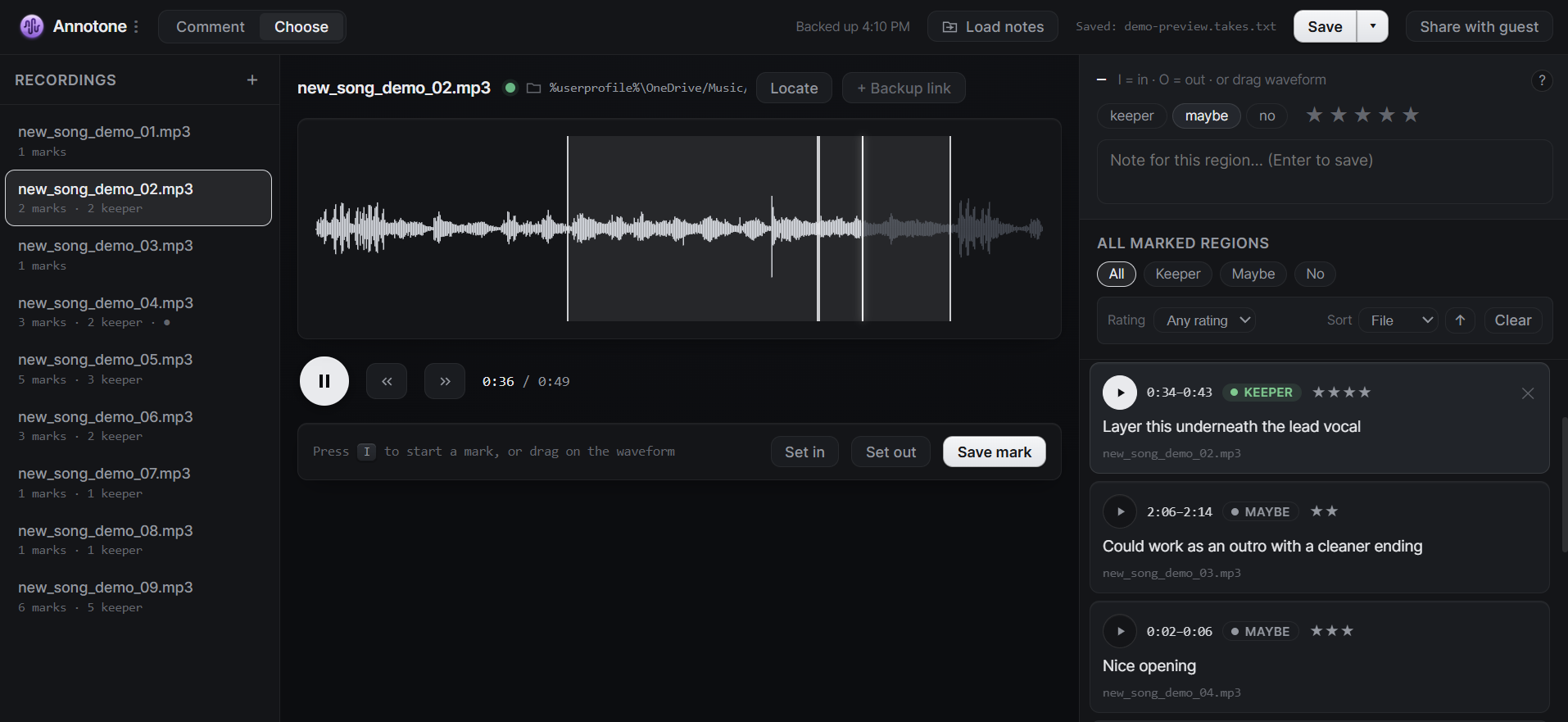
- Open Choose mode and add as many audio files or vocal takes as you want by dragging and dropping or selecting them from your filesystem.
- Click Play or press Space to listen. Use the ↑ and ↓ arrow keys to switch between recordings.
- Click the waveform or press C to add a comment at a specific timestamp.
- To comment on a range or interval, click and drag on the waveform or press I at the beginning and O at the end.
- To add a rating, use the 1–5 keys to make a selection, or press 0 to clear its rating.
- To flag the best and worst takes, press K for keeper, M for maybe, or N for no.
- Press Tab anytime to switch between using shortcuts and typing your comment. Press Enter to save.
- Click any saved take to play it again, then use the filters to review your keepers, maybes, ratings, and rejected takes and filter further.
- Click Save to store your selections and comments locally as a plain-text TXT file.
How to edit, annotate, and share audio with multiple collaborators
Annotone stores your comments as a plaintext, human-readable file that anyone can edit in Notepad. However, there's an easier way to share with collaborators, using Annotone's private review link feature:
- Once you are finished adding comments in either Comment or Choose mode, click Save to create a portable notes file containing your comments, timestamps, ratings, flags, and audio-file links.
- To share with another Annotone user, send them the saved notes file alongside the matching audio files. They can load the notes in Annotone and reconnect the audio if needed.
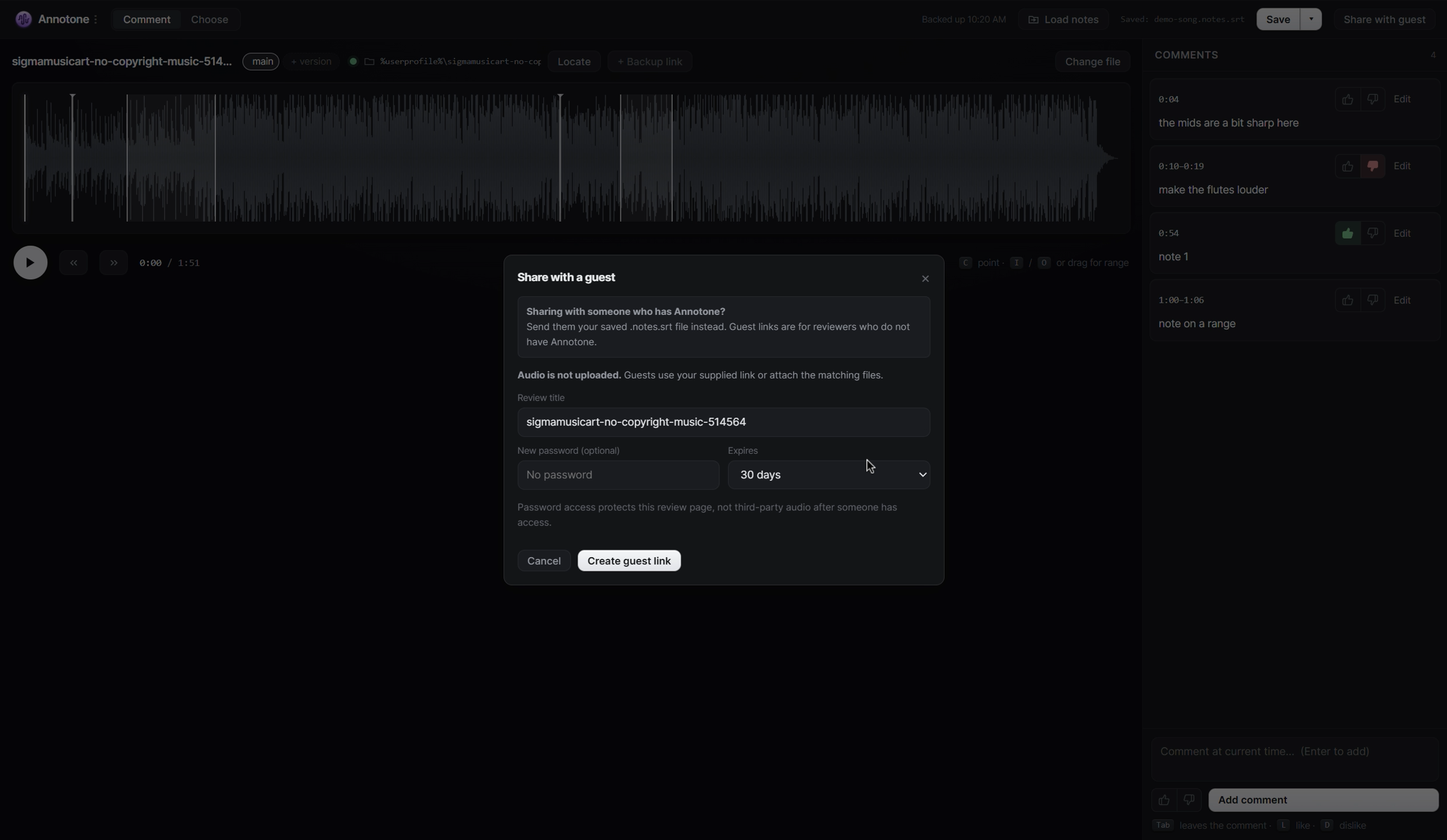
- To share with someone who does not have Annotone, click Share with guest.
- Enter a title for the review, choose when the link should expire, and optionally add a password.
- Click Create guest link, then copy the private link and send it to your collaborator.
- Your collaborator can open the review in a browser and attach the matching audio files from their computer. The audio remains on their device and is never uploaded to Annotone. Just keep sharing your audio files however you already do (ie. Dropbox, OneDrive, email, etc.)
- Your collaborator can listen to the audio, respond to existing comments, add timestamped feedback, and suggest ratings or flags in Choose reviews.
- Return to Share with guest and click Import review responses to add their feedback to your local Annotone project.
- You can refresh, regenerate, or revoke a review link at any time. Open the Annotone menu and select Manage guest reviews to manage all active links.
How to share music production notes
For recording artists, mixing / mastering engineers, and sound designers alike, being able to quickly comment on specific timestamps and intervals while listening to a song is the key to efficient feedback. This makes working with clients or other creators to edit audio files much faster (minimizing the need for calls and emails).
Instead of having to cross-reference a Google Doc or email and search through files and timestamps manually, you can simply click to edit or play any time-synced note. This saves a ton of time, and more importantly eliminates tedious disruption to your creative flow.
Annotone is a powerful, local-first tool for sharing feedback on music. It allows you to comment directly on MP3, WAV, and FLAC files while you're listening, so you can easily share edits for mixing/mastering, vocals, and more in just a few clicks. You get the ease of adding comments in a SoundCloud-like interface, without having to upload your audio files to the cloud or pay a subscription. Collect feedback from your collaborators via a private review link that opens in the browser, or by simply sharing the plain-text notes file that anyone can open in Notepad.
How to find your best vocals
Searching through demo recordings to find the best vocals or melodies for a song you're working on can be extremely tedious and disrupt your creative flow. Annotone audio collaboration software makes this process painless and incredibly fast.
While Annotone's "Comment" mode allows you to add comments to an individual track and compare variations, the "Chooser" mode is designed specifically for isolating your best takes.
You can add notes across as many tracks as you want and mark your favorite parts with star ratings and 'keeper' or 'maybe' flag. Instead of manually toggling between files and searching for timestamps, you can simply click on any given take to play the audio at that part or edit your notes.
To get the most out of Annotone, use the keyboard shortcuts:
- Press C to add a comment at the current timestamp, or press I and O to select a range.
- Press Enter once to edit your comment and twice to save.
- In "Chooser" mode, use the ↑ and ↓ arrow keys to switch between recordings.
- In "Chooser" mode, press K for keeper, M for maybe, or N for no. Use 1–5 to add a rating and 0 to clear it.
Whether you're a producer, mixing / mastering engineer, or a singer, Annotone makes it easy for your collaborators to provide feedback on your music.
How to share feedback with clients as a freelance audio professional
Many music producers and songwriters work primarily on a contract basis (often remotely) with their clients. Sharing notes via email (or worse, Zoom calls) is tedious and reduces your hourly earnings.
Annotone's local-first audio annotation tool makes it easy to add notes and share feedback on audio files. You can share as many private review links as you'd like with your clients via Annotone, and they can easily add and reply to comments with the same SoundCloud-style interface.
Most importantly, you don't have to pay for another subscription just to share feedback. Annotone links to audio files via local directory paths (just like your DAW), so you can keep sharing your audio files however you already do.
Enjoy the convenience of a user-friendly, purpose-built collaboration tool for audio professionals, without the cloud storage limits or the risk of your stems leaking.
How to review podcast episode drafts
Annotone makes it super easy to take notes while listening to a podcast or an audiobook. Instead of manually jotting down timestamps and filenames or scheduling a meeting, you can simply let the audio play and click wherever you want to add a note (or hit the "C" button on your keyboard), type in your thoughts, and hit "Enter" to save.
If you want to select a range in your track (for example, if there's background noise in a certain section), you can either click and drag on the waveform, or use the "I" (in) and "O" (out) keys while the audio is playing to comment on an interval. Annotone was carefully designed to make it smooth and fast to add comments in real-time while listening to an audio clip. Skip the emails, documents, and meetings, and bring the joy back to collaborating on audio!
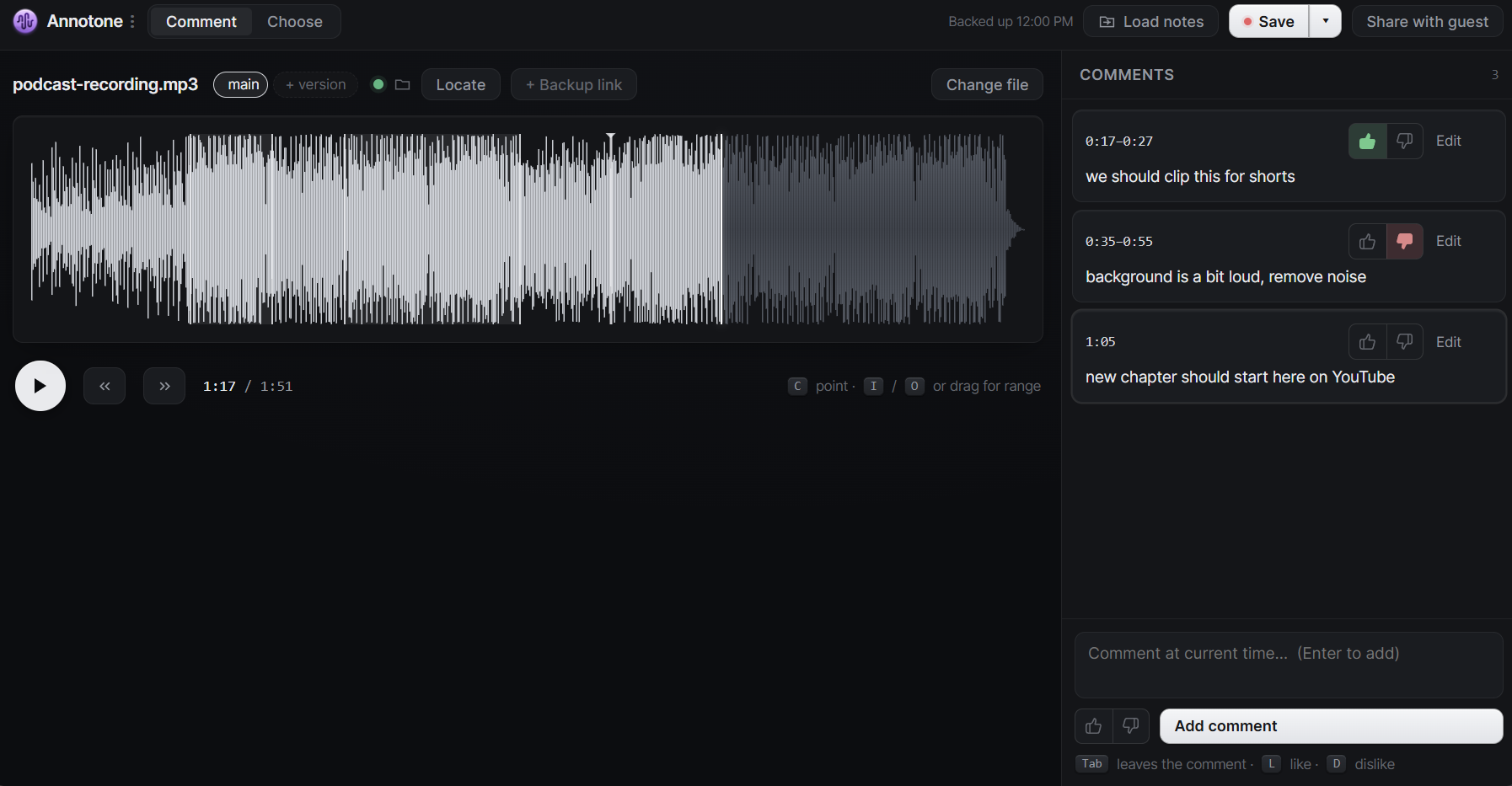
How to add transcription notes to Zoom meeting recordings
Many automated webinars, training courses, and marketing teams use meeting recordings from apps like Zoom and Skype. With Annotone's local-first audio software, you can add notes to your audio files directly on your own device (no Internet needed) and without the hassle of subscriptions with cloud storage limits that longer media files quickly exceed.
Whether you're manually transcribing audio or adding editing notes, simply drop your meeting recording into Annotone and click and drag to add comments.
How to share notes with a voiceover artist
If you're narrating an audiobook, promotional video, documentary, or creative project, the final audio is certain to go through rigorous review. Annotone makes it easy to share notes with your collaborators, without ever having to upload your audio anywhere.
It's a great way to quickly make note of anywhere where you might have stumbled over or mixed up words: you can easily add comments with you listen using keyboard shortcuts (like "C" to add a timestamped note, or "I" and "O" to select an interval), so you're not constantly pausing for every note. The "Chooser" mode is a great way to review different concepts and creative approaches, and narrow down to the best. Annotone's local-first application is a robust and practical tool for voice professionals, making quality assurance and creative collaboration a breeze.
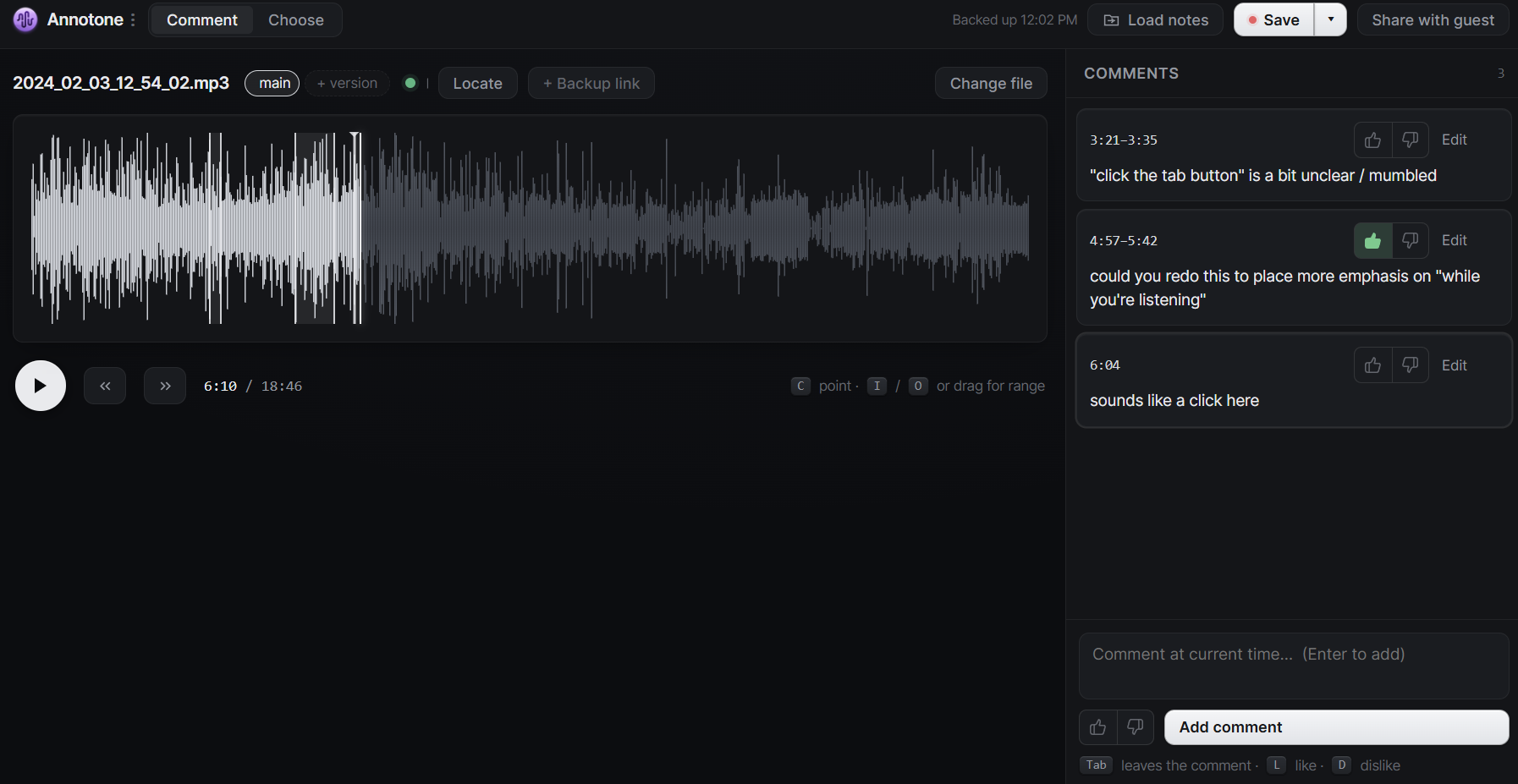
Make the switch: bring the joy back to audio collaboration
Notes apps and Google Docs are simple but tedious to write, and incredibly tiresome to review. Searching for timestamps and files is a surefire way to kill the creative flow.
On the other hand, basically every popular audio annotation tool on the market requires you to upload your audio files to the cloud, and charges you a subscription with storage limits.
Annotone gives you the best of both worlds: Convenient, blazing-fast interface. Private sharable review links. No audio files uploaded. Notes stored as plain-text files. Runs offline.
The fastest & easiest way to share notes on audio files
Download Annotone today, and it's yours for life. Share feedback on audio files securely and quickly.
Download Annotone